I used the gradient mesh tool to color each piece of the pepper separately. To begin using the tool, you click anywhere in the pepper that needs a gradient added. This created a grid on the pepper, splitting it up into areas that different colors of gradient can be added.
I started with the white glares on the pepper. If the gradient section is too large and the color extends further than you would like, you can keep adding more lines in the mesh grid which cuts off the color of gradient.
It is important to note that the direct selection tool can be used to manipulate the anchor points on the gradient mesh grid to make the areas of gradient smaller or larger.
Another tool that is helpful is to use the direct selection tool to drag across many points, which allows gradient color to be added to a larger section of the object.
This is a tricky tool, but I learned that it takes lots of time and attention to detail to create a gradient that looks realistic.

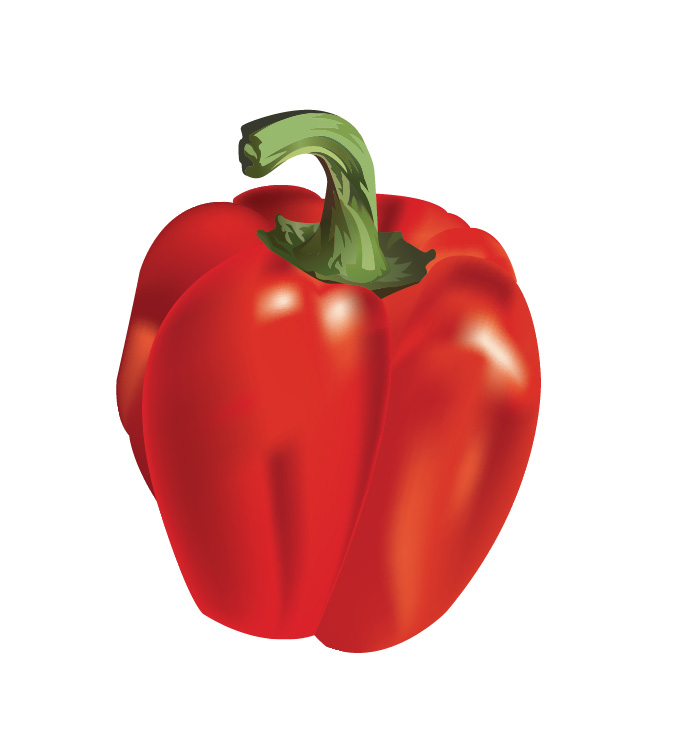
 Computer Graphics: Molly Brennan